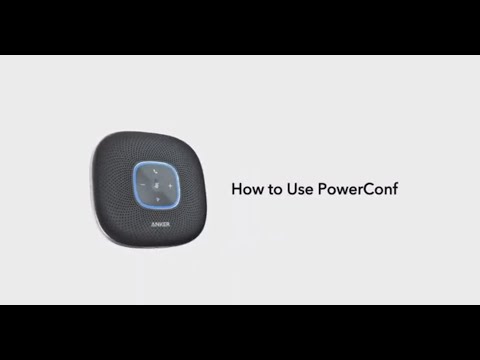
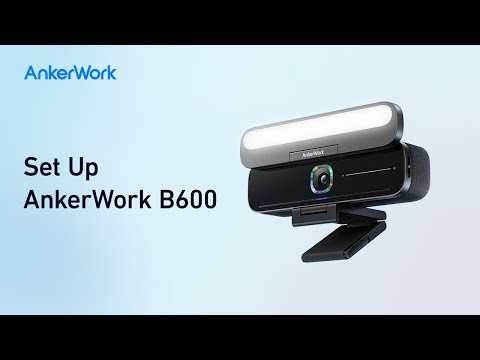
The AnkerWork app helps you quickly connect and set up your device for excellent sound whether you are at home or in the office. Also, it includes a built-in PDF scanner which is office-friendly.
Get the AnkerWork App
Simply download the AnkerWork app from App Store (iOS devices) or Google Play (Android devices) and start having full control of your AnkerWork devices.
For PC users, you can download the latest AnkerWork software from this website and choose the Windows PC version or MacOS version per the PC you are using.
Here's What You Need to Begin
- A free AnkerWork account (it is not necessary but an account can help us reach out to you more easily if any campaign is available for AnkerWork users in the near future).
- At least one AnkerWork product that requires using the AnkerWork app. If no AnkerWork product is connected, you can still use the PDF scan feature with AnkerWork APP mobile version.
AnkerWork App FAQ
1. Is the AnkerWork app free?
Yes, it is free of charge.
2. Where is the AnkerWork app available?
The AnkerWork app is available on App Store (iOS devices) and Google Play (Android devices) for mobile version.
For PC version, please go to software.ankerwork.com and download the latest version for your Windows or Mac computer.
3. What are the compatible AnkerWork devices with the AnkerWork App?
AnkerWork App mobile version: PowerConf, PowerConf S3, PowerConf+, PowerConf S500, PowerConf H500, PowerConf H700;
AnkerWork App PC version: PowerConf C300, PowerConf C302, PowerConf C200, PowerConf S500, PowerConf S330, PowerConf S360, PowerConf H500, PowerConf H700, AnkerWork B600 Video Bar
4. What is the minimum operating system requirement to use the AnkerWork App?
The AnkerWork app is compatible with Android OS (5.0 or later) and iOS (11.0 or later) phones and tablets. Please note using it on an operating system that does not meet the requirement may result in compatibility issues.
5. How do I update the AnkerWork App?
For the Mobile version, you can visit the App Store (iOS devices) and Google Play (Android devices) to check for updates.
For the PC version, a prompt will inform you of the APP update when it is available. Or, you can go to "Device->Inspection Update" to check whether a new version is available or not.
If you still have any concerns or questions about the AnkerWork app, contact us for further assistance.