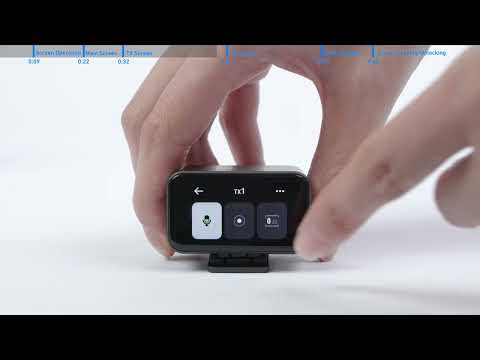
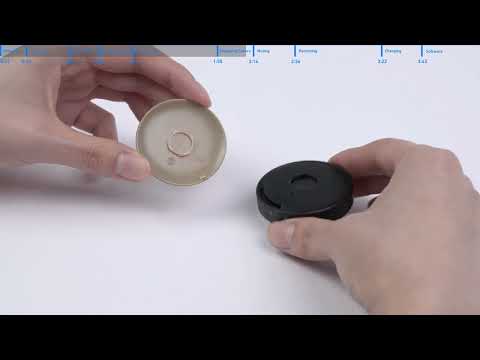
1.How do I pair the receiver and the transmitters?
The receiver and transmitters automatically pair as soon as you open the charging case.
If they disconnect, put the receiver and transmitters back into the charging case, and turn the charging case off, then on, or restart the receiver and transmitters manually to restore connection.
2.How do I connect M650 Wireless Microphone to my phone?
To connect to a phone, just use the provided USB-C or Lightning adapter to connect your phone with the receiver.
Notes:
- An iPhone speaker cannot output sound when connected to the receiver. Use Bluetooth headphones or a speaker instead.
- Stereo mode and Safe mode are not supported when using the Lightning adapter. Only Mono mode is available.
- If your phone has a protective case, the case thickness shouldn't exceed 2 mm. This ensures the connection remains stable.
3.How do I connect M650 Wireless Microphone to my computer?
To connect to a computer, use the provided USB-C cable to connect your computer with the receiver. You can also use an AUX cable.
Notes:
- M650 works as an external microphone for a computer. Please make sure you have selected the AnkerWork M650 RX as the input audio device for your computer and recording software.
- When connected via the AUX port, laptop users should use a third-party TRS to TRRS AUX cable. For desktop users, use the provided AUX cable (TRS).
4.How do I connect M650 Wireless Microphone to a camera?
Mount the receiver to the camera with the built-in adapter and connect with the provided AUX cable.
Notes:
1. For best results, manually adjust the camera recording volume.
2. To reduce distortion and background noise, lower the camera gain and turn off the automatic gain control on your camera.
3. M650 may not be compatible with the wind noise suppression and noise reduction functions of your camera. It is recommended that you turn off both functions when recording.
5.Can M650 Wireless Microphone work with other lavalier microphones?
Yes, but the transmitter contains a 3.5 mm TRS port. Lavalier microphones with TS or TRRS connections are not compatible.
6.How do I wear the transmitter?
Option 1: Attach the transmitter to your clothes with the back clip.
Option 2: Separate the black clip from the transmitter. Use the clip magnet to attach to the transmitter.
7.What is the maximum transmission range?
The transmission range of the microphone is up to 656 ft / 200 m in an open and interference-free environment with the receiver directly facing the transmitter.
8.What is the communication protocol between the receiver and the transmitters?
2.4GHz communication protocol and LC3plus Codec.
9.How do I charge M650 Wireless Microphone? How long does the battery last?
It takes a 5V/2A USB wall charger 3 hours to fully charge the charging case. A fully charged charging case can fully charge the receiver and transmitters simultaneously 1.5 times.
10.How do I update the M650 Wireless Microphone firmware?
You can install the AnkerWork computer software for firmware updates: Software.ankerwork.com:
To update:
1. Return the receiver and transmitters to the charging case.
2. Connect the charging case to a computer via the provided USB-C cable.
3. Open the AnkerWork software and check for firmware updates.
Note: Firmware updates take between 5-10 minutes to complete.
11.What is the difference between Mono mode and Stereo mode?
M650 Wireless Microphone supports two recording modes: Mono mode and Stereo mode.
Mono mode: Record audio onto a single channel.
Stereo mode: Record audio onto left and right channels (Transmitter 1 as left channel and Transmitter 2 as right channel).
Note: Stereo mode is not supported when using the Lightning adapter. Only Mono mode is available.
12.How does Safe mode work?
With Safe mode enabled, M650 Wireless Microphone will record a backup audio track at -6dB in case the sound source gets loud unexpectedly and causes distortion to the main channel.
Note: Safe mode is not supported when using the Lightning adapter.
13.How do I monitor audio while recording?
To monitor the audio while recording, plug your headphones into the receivier's TRS output port. You can also monitor the audio via the connected camera.
Notes:
- When the receivier is connected with a camera via the AUX port, set the Receiver output mode to AUX-Low and monitor the audio via the camera.
- When the receivier is connected with an Android phone or PC via the USB-C port, set the Receiver output mode to AUX-High and plug your headphones into the receiver's AUX port to monitor.
- When the receivier is connected with an iPhone via the Lightning adapter, selecting AUX-High may distort recordings. Set the Receiver output mode to AUX-High for mic checks and return to AUX-Low for recording.
- If you are using TRRS headphones to monitor the audio, make sure it meets the CTIA standard. TRRS headphones with an OMTP standard are not supported.
14.How do I lock/unlock the receiver touchscreen?
1. The screen locks automaitcally if there's no activity for 30 seconds. Click the power button to unlock it.
2. Manually lock the screen by pressing the receiver's power button. Unlock by pressing the power button again.
15.How do I record with the transmitters?
1. Swipe left or right on the receiver touchscreen to access individual transmitter settings. Swipe up to sync the two transmitters.
2. Tap the recording icon to start recording and tap again to stop. The audio file will be stored on the transmitter.
Notes:
- Each transmitter comes with built-in storage to record up to 7 hours of audio.
- To access recording files, return the transmitters to the case and connect the case to your computer via the provided USB-C cable. It works the same way as a thumb drive.
- When storage is full, you can delete files or turn on "Overwrite Files" in the AnkerWork software.
16. What file format and quality are the recording files saved in by the transmitters?
The transmitters save recording files in WAV file format with a high-quality sample rate of 48kHz and a bit depth of 24 bits. This ensures that every detail of the audio is captured accurately.
17.How do I mute M650 Wireless Microphone?
1. Press the transmitter button.
2. Set via the receiver touchscreen.
Note: The transmitter's LED turns steady red when muted.
18.What can I do with the AnkerWork computer software?
You can:
1. Update the firmware.
2. Manage audio files, including exporting, playing, marking, and overwriting settings.
3. Customize a function with the transmitter's power button. Options include muting or marking.
4.Set the receiver's Safe mode, Sound mode, Equalizer and display screen intervals.