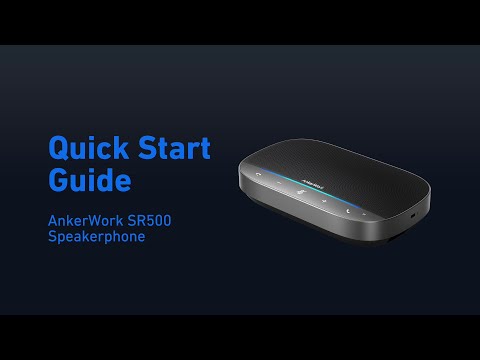
We have summarized a list of frequently asked questions regarding the AnkerWork SR500 from our valued customers. Let’s begin!
1. What settings can be controlled by the Anker Work software?
You can:
- Check product information
- Read the user manual
- Check the latest firmware updates
- Manage your devices
2. How do I update AnkerWork SR500's firmware?
- Install AnkerWork software of PC version.
- Connect SR500 to your computer via USB.
- Open AnkerWork to check for updates
- Install if a firmware update is available.
3. How do I connect AnkerWork SR500 to my devices?
1. Plug the provided power adapter into the speakerphone.
2. Connect the speakerphone to your computer using the provided USB cable. Use the USB converter if necessary.
3. Select AnkerWork SR500 Speakerphone for your computer system or conference software.
Note:
If the connection distance in your conference room exceeds 16 ft (5 m), use signal amplifiers to ensure effective and stable signal transmission.
4. How do I set my AnkerWork SR500 as the default audio device on my Windows computer?
- Right-click the volume icon in the lower right corner.
- Select "Open Sound Settings."
- Select AnkerWork SR500 as your input and output.
5. How do I set my AnkerWork SR500 as the default audio device on my Mac?
- Click "" in the top left and choose "System Preferences."
- Choose the "Sound" option.
- Select AnkerWork SR500 as your input and output.
6. How do I set up AnkerWork SR500 with my meeting software?
- Go to the audio options on your conference communication tool.
- Select AnkerWork SR500 as the microphone and the speaker.
7. How do I set up Linking mode?
You can link up to five AnkerWork SR500 Speakerphones for meeting rooms of different sizes.
1. Plug the provided power adapter into a speakerphone.
2. Connect the LAN output port of one speakerphone to the LAN input port of another speakerphone with a PoE ethernet cable.
3. Connect any speakerphone in the chain to your computer using the provided USB cable. Use the USB converter if necessary.
Note:
1. The speakerphone connected to your computer is the primary device. Its settings apply to the other speakerphones in Linking mode.
2. Make sure to power the first speakerphone instead of the others in the chain
3. The LED light bar will flash to indicate Linking mode was set up successfully.
8. Does AnkerWork SR500 support Bluetooth?
AnkerWork SR500 does not currently support Bluetooth.
9. Can I connect AnkerWork SR500 with my smartphone?
Connecting SR500 with smartphones is not recommended.
10. How do I improve AnkerWork SR500's ability to pick up voices?
- Keep within 16 ft (5 m) of the speakerphone.
- Remember to keep your SR500 firmware updated.
If you have additional questions, please contact us for further assistance. Make sure to mention that you have tried the steps in this FAQ so our agents do not ask you to repeat these steps.