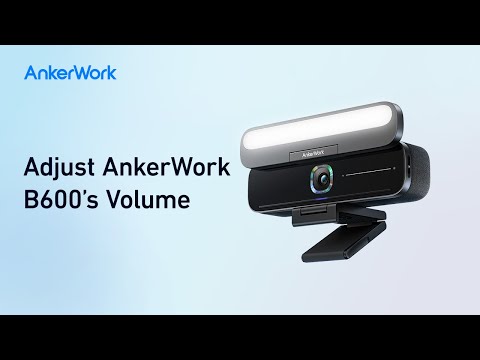
How Do I Set My AnkerWork B600 as the Default Audio or Video Device on My Computer?

To set your AnkerWork B600 as the default audio or video device on your computer, try the following steps:


A) Windows System

• Audio: 

Right-click on the sound icon, then go to Open Sound settings > Choose your output device / Choose your input device.


• Microphone: 

1. Go to Settings > Privacy > Microphone and turn on "Allow apps to access your microphone." 

2. Turn on each of the listed apps where you want to use the microphone. 


• Camera: 

1. Go to Settings > Privacy > Camera and turn on "Allow apps to access your camera." 

2. Turn on each of the listed apps where you want to use the camera.


B) macOS 

• Audio: 

Go to System Preferences > Sound > Sound Effects / Output / Input


• Microphone: 

1. Go to System Preferences > Security & Privacy, then choose Microphone from the left side list. 

2. Locate the app(s) you want to enable microphone access for and check the box alongside that app name. 


• Camera: 

1. Go to System Preferences > Security & Privacy, then choose Camera from the left side list. 

2. Locate the app(s) you want to enable camera access for and check the box alongside that app name. 


If you have any questions about the setup, please contact us for further assistance.


How Do I Set My AnkerWork B600 as the Default Audio or Video Device on My Computer?
50 undefined
How to Locate the Serial Number on AnkerWork Products?
2629 views/1 likes/2025-04-08 17:19:14
Parts & Accessories
2400 views/1 likes/2025-04-08 17:19:06
About AnkerWork App
1802 views/1 likes/2025-04-08 17:19:06
Payments & Vouchers FAQ
3682 views/1 likes/2024-11-27 10:08:25
What if the FoV is Too Large on My PowerConf Webcam?
659 views/1 likes/2025-04-08 17:19:24
How Do I Connect AnkerWork B600 to a Computer?
224 views/1 likes/2025-04-08 17:19:16
What if the Image is Blurred on my PowerConf Webcam?
275 views/1 likes/2025-04-08 17:19:13
A3961 QSG V2(1)
Liberty 4_A3953_QSG
Q20i_QSG
EU Declaration of Conformity for soundcore A3i_A3992
UK&CA Declaration of Conformity for soundcore Liberty 4_A3953
EU&UK Declaration of Conformity for soundcore Sleep A10_A6610
View More
How to use Liberty 4 Wellness features
How to Connect to the Soundcore App and Update Firmware for Sport X10
How to Wear Liberty 4 and Change Eartips
How to solve a connection issue on Sleep A10
How to Use Features On the Soundcore App for Sport X10
How to Pair and Reset Sport X10
View More