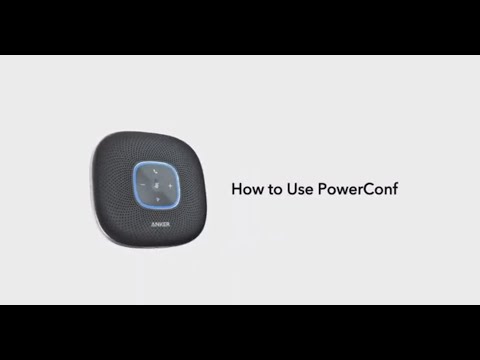
There are 3 ways to connect the PowerConf S500 to your devices.
Option 1: Bluetooth USB adapter
1. Plug the provided Bluetooth USB adapter into a USB-A port on your PC, then PowerConf S500 is ready to use after it powers on.

2.You might need to manually set PowerConf S500 as the audio device for your PC.
macOS System
Preferences > Sound > Sound Effects / Output / Input
Windows System
Right-click on the sound icon > Open Sound settings > Choose your output device / Choose your input device
Software (Zoom, Skype, etc)
Settings > Audio > Speaker / Microphone
Option 2: USB-C cable
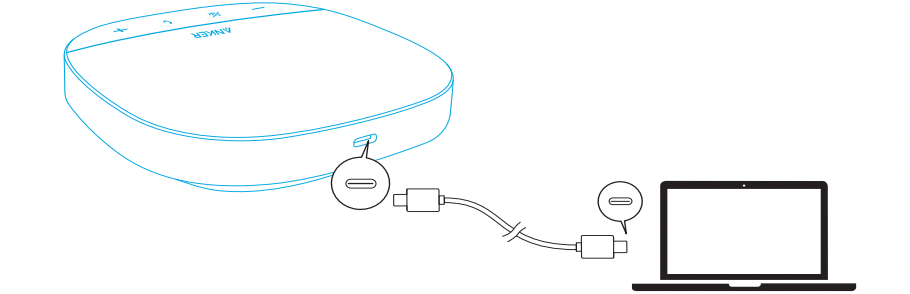
Connect PowerConf S500 to a PC using the provided USB-C cable, it will be powered on and ready to use.
Option 3: Bluetooth
1. When powered on, PowerConf S500 will automatically enter Bluetooth pairing mode. Alternatively, press the Bluetooth button to enter Bluetooth pairing mode.
2. Select “Anker PowerConf S500” on your PC’s Bluetooth list to connect.

Note: Each time you power on PowerConf S500, it will automatically connect to the last successfully connected device if available. If not, press the Bluetooth button to enter Bluetooth pairing mode.
• This speakerphone can pair with up to 2 mobile devices via Bluetooth at the same time. To pair with another Bluetooth device, press the Bluetooth button to re-enter Bluetooth pairing mode.
• To remove the Bluetooth connection from one device, press the Bluetooth button again on the PowerConf S500 that’s currently active.
If you still have a connection issue, please contact us for further assistance. Please make sure to mention that you have tried the steps in the FAQ so that our agents do not ask you to repeat these steps.