There are 3 ways to connect the PowerConf+ to your PC.
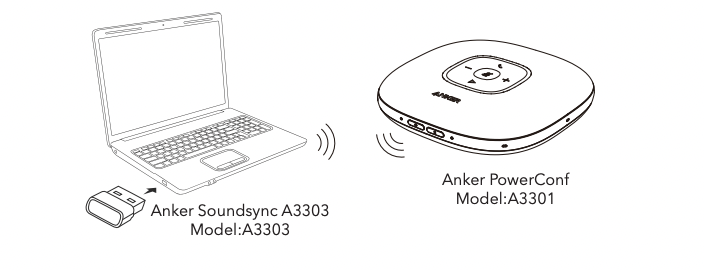
1.Bluetooth USB Adapter
Plug the Bluetooth USB adapter into a USB-A port on your PC, PowerConf+ is ready to use after it powers on.
Connect PoweConf+ to your computer by using a USB-C cable. If necessary, please use an adapter or hub to connect.

3.Bluetooth Pairing
When powered on, PowerConf+ will automatically enter the Bluetooth pairing mode. Select "Anker PowerConf" on your PC's Bluetooth list to connect.
After connecting the PowerConf+ to your PC, you need to manually set PowerConf+ as the audio device for your PC system or the conference software you are using.
macOS System
System Preferences > Sound > Sound Effects / Output / Input

Windows System
Right-click on the sound icon > Open Sound settings > Choose your output device / Choose your input device

Conference Software
Audio Settings > Microphone / Speaker

If you have additional questions, please contact us for further assistance.