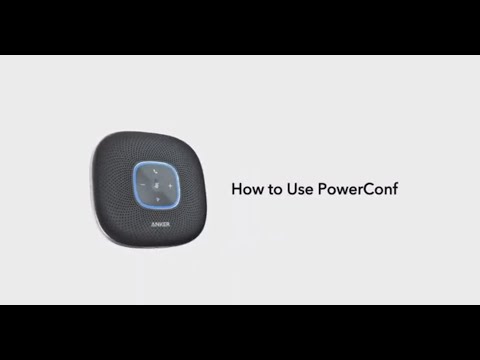
We provide a Bluetooth dongle for PowerConf+ and PowerConf S500 to ensure a more stable wireless connection and also to establish a wireless connection if the user's computer does not have the Bluetooth function. The dongle will turn to pair mode and pair with the PowerConf automatically once it is plugged in. If the dongle fails to pair to PowerConf, you can try the following steps to see if the issue can be fixed:
1. Please pair the PowerConf speakerphone with your phone via Bluetooth directly without using the dongle so that we can identify whether the issue is caused by the speakerphone or the dongle.
2. Reset the PowerConf and try pairing again: When the PowerConf is powered on, press and hold down the Bluetooth button and then press the Volume"-" button until the square indicator flashes four times.
3. If both steps listed do not resolve the issue, we can come to the conclusion that the issue is caused by the dongle. Try clearing the connection history of the dongle to see if it can resolve the issue.
Steps to clear the connection history of the dongle:
-Plug in the dongle into your computer.
-Make sure the "Anker Soundsync A3303" is selected as the default audio device for your computer.
- Press the Mute button on the keyboard of your computer four times to clear the connection history.
For Windows:
- Plug in the dongle.
- Click the loudspeaker icon on the bottom right menu bar of your PC.
- Make sure the "Anker Soundsync A3303" is selected as the default audio device.
- Left-click the loudspeaker icon under the Anker Soundsync A3303 four times.
If the above solutions cannot solve your issue, please contact us for further assistance. Please make sure to mention that you have tried the steps in the FAQ so that our agents do not ask you to repeat these steps.