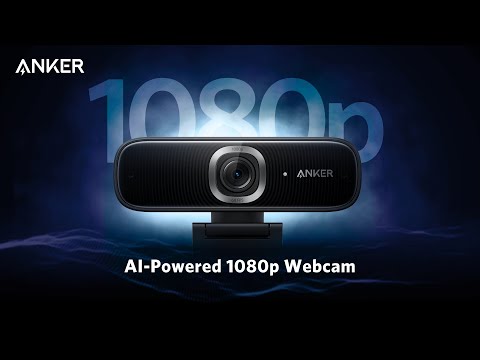
1. How do I install PowerConf C302?
2. How do I set up PowerConf C302?
3. How do I select PowerConf C302 and its built-in microphones in the settings of the specific software I am using?
A) Windows
- Go to Settings > Privacy > Camera and turn on "Let apps use my camera".
- Turn on each of the listed apps you want to use the camera. After you open the Camera app, you may need to switch to the Full HD Camera.
B) macOS System
- Go to the Apple Menu > System Preferences > Security & Privacy, then choose Camera from the left side list.
- Locate the app(s) you want to enable camera access for and check the box alongside that app name to enable camera access.
C) Software (such as Zoom): Go to Settings > Video > Camera and choose this webcam.
4. How do I set up the privacy cover on PowerConf C302?
5. Does PowerConf C302 support Bluetooth connectivity?
No, PowerConf C302 does not currently support Bluetooth.
6. Can I connect multiple PowerConf C302s to my computer at the same time?
Multiple PowerConf C302s can be connected to a computer at the same time.
7. Can I connect PowerConf C302 to my computer via a hub or an adapter?
PowerConf C302 can be connected to a computer via a hub or an adapter. Please ensure that the connected USB-C port of the hub or adapter supports data transfer. For better video transmission, we recommend using a USB cable.
8. Where do I download the AnkerWork software?
Please download the software from this link:
https://us.ankerwork.com/pages/download-software.9. What can I do with the AnkerWork software?
10. Does the AnkerWork software support virtual background settings?
No, the AnkerWork software does not currently support virtual background settings. However, you can set virtual backgrounds via a third-party software that supports this feature.
11. Does the AnkerWork software support video recording?
No, the AnkerWork software does not currently support video recording. However, you can record your videos via a third-party software that supports this feature.
12. Does PowerConf C302 support manual white balance settings via the AnkerWork software?
No, the AnkerWork software does not currently support manual white-balancing. However, PowerConf C302's webcam is enabled with an auto-white-balance feature, which can automatically adjust color balances to ensure true-to-life colors and skin tone.
13. Do I need to download the AnkerWork software to use PowerConf C302?
It is highly recommended to download the software. With the AnkerWork software, you can make full use of the AI features of the webcam and customize the settings of the screen, field of view, and more. The software will also instantly alert you to firmware updates for PowerConf C302 to further enhance your experience.
14.Does PowerConf C302 support 60 fps?
No, PowerConf C302 only supports 30 fps. The frame rate will be affected by third-party softwares and network bandwidth, but the camera will auto-adjust to ensure the frame rate remains constant.
15. Does PowerConf C302 support AI features?
16. Does PowerConf C302 support manual zoom and frame?
Yes, PowerConf C302 supports both manual zoom and frame. You can go to Device > Angle and Frame on the AnkerWork software to customize the field of view (FoV) and frame settings based on your preferences.
Note: Remember to update both the AnkerWork software and the firmware of the webcam to get this feature.
17. Will PowerConf C302's picture quality be affected by other connected devices or third-party software?
When PowerConf C302 is connected to a third-party conferencing software, the quality of the video image may be affected.
For example, the maximum resolution for Zoom is 720p and 360p for Microsoft Teams. PowerConf C302 will only display image quality in 720p and 360p, respectively, despite it being capable of supporting up to 1080p resolution.
The quality of the video image can also be influenced by the network bandwidth and processing mechanisms used by third-party softwares.
18. Can PowerConf C302 support two streams simultaneously?
Due to the limitations of the USB (UVC) protocol, only one video stream is supported when the webcam is working with a computer. Please ensure the AnkerWork software is closed when you are using the PowerConf C302 with third-party software.
19. How do I improve the microphone's vocal pickup on my PowerConf C302?
Improve your microphone's vocal pickup ability by speaking within 3 m of the product and regularly updating the firmware.
Note: PowerConf C302 is mainly designed for video calls and the built-in microphones are included benefits. If you are using PowerConf C300 in meeting rooms, we recommend connecting it with a professional speakerphone.
20. Does PowerConf C302 support Windows Hello?
No, PowerConf C302 does not currently support Windows Hello.