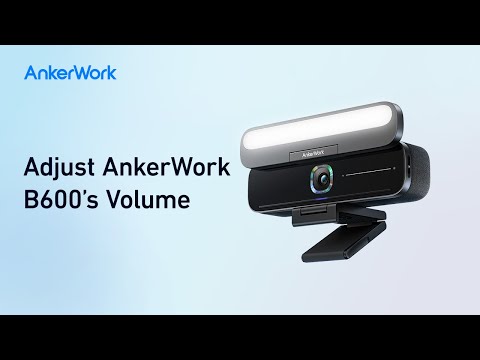
You have the following options to connect AnkerWork BR300 USB Video Conference Bar:
Option A: Connecting to a Computer (USB Cable)
1. Plug in the provided power adapter and power cable into the video bar. The LEDs on the video bar will turn white.
2. Connect your computer to the USB-C port on the video bar using the provided USB cable. The video bar will be ready to use when connected.
3. Connect the computer to one or more monitors depending on the computer's capability.
4. Optional: To stream videos from the video bar, connect it to a monitor using an HDMI cable (not included).
5. Optional: To extend the voice pickup range in a medium-sized meeting room, connect an external microphone* to the USB-A port on the video bar using the USB cable (not included).
Note:
1. The video bar will automatically turn on once connected to a power supply.
2. Your computer and video bar cannot be connected to the same monitor simultaneously.
3. Make sure to select "AnkerWork BR300 USB Video Conference Bar" as the audio and video device in your conferencing software.
4. AnkerWork BR300 USB External Mic is available for purchase.

Option B: Connecting to a Smartphone (Bluetooth)
The video bar only supports audio calls when connected to a smartphone via Bluetooth pairing.
1. Press the Bluetooth button on the remote to enter pairing mode. The LEDs on the video bar will flash blue.
2. Select "AnkerWork BR300 USB Video Conference Bar" on your device's Bluetooth list to connect. When successfully connected, the LEDs on the video bar will turn solid blue.

If you have additional questions, please contact us for further assistance.